Quick Facts
- Category: Software Tools
- Published: 2026-05-04 12:23:37
- Reading Ruler Now Available on Chrome Web Store – Your Feedback Shapes the Future
- Achieving Production Milestones: A Step-by-Step Guide to Completing the First Unit on a High-Volume Assembly Line
- How to Use Kin Health's AI Notetaker for Your Next Doctor Visit
- Breakthrough in AI Video World Models: State-Space Solution Overcomes Long-Term Memory Barrier
- Bridging the Gap: Why Good Designers Create Inaccessible Websites and How to Fix It
Introduction
Ptyxis has quickly emerged as a standout terminal emulator for the GNOME desktop. Built on GTK4 and libadwaita, it blends seamlessly into the modern GNOME environment, offering both visual consistency and advanced functionality. Originally crafted to support contemporary software development workflows—especially containerized environments like Podman, Distrobox, and Toolbox—Ptyxis is now the default terminal for Fedora and will soon ship with Ubuntu. After spending several months with this terminal, I’ve discovered a handful of features that make everyday terminal work more efficient and enjoyable. Below, I highlight two of its most compelling capabilities: the intelligent tab overview and the extensive color scheme support.
Visual Tab Overview and Management
A Tab System Inspired by GNOME Activities
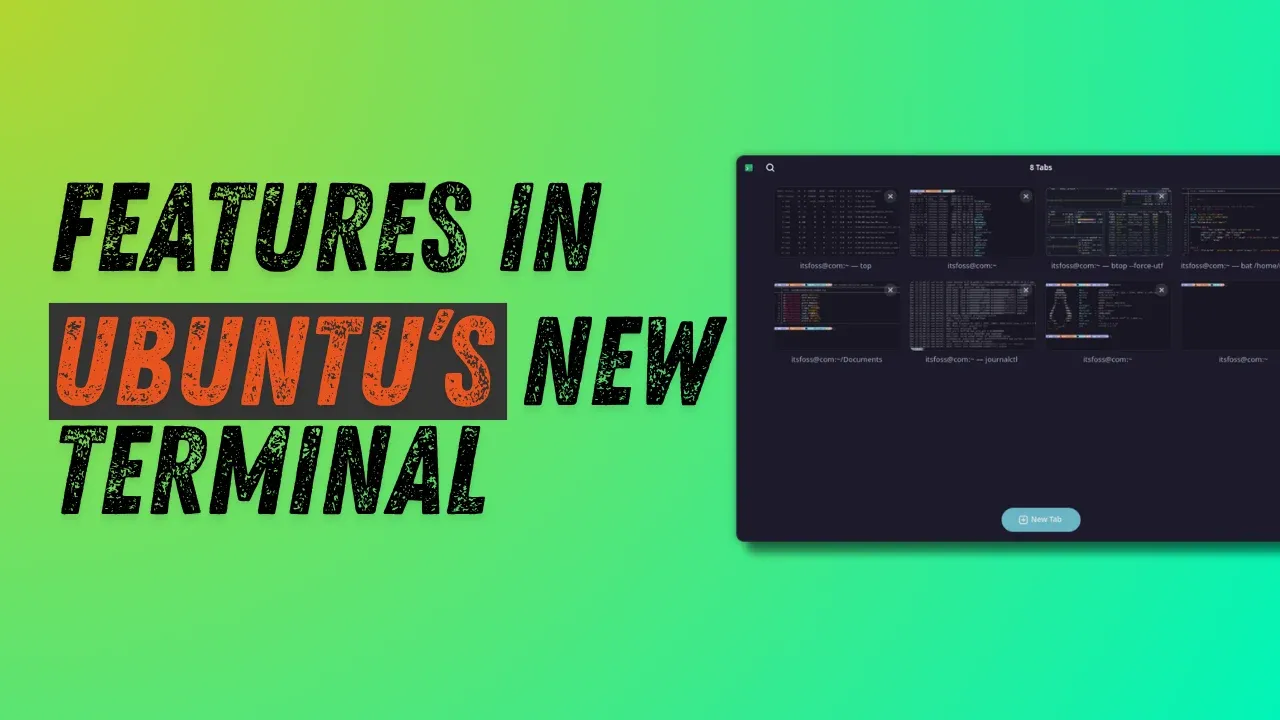
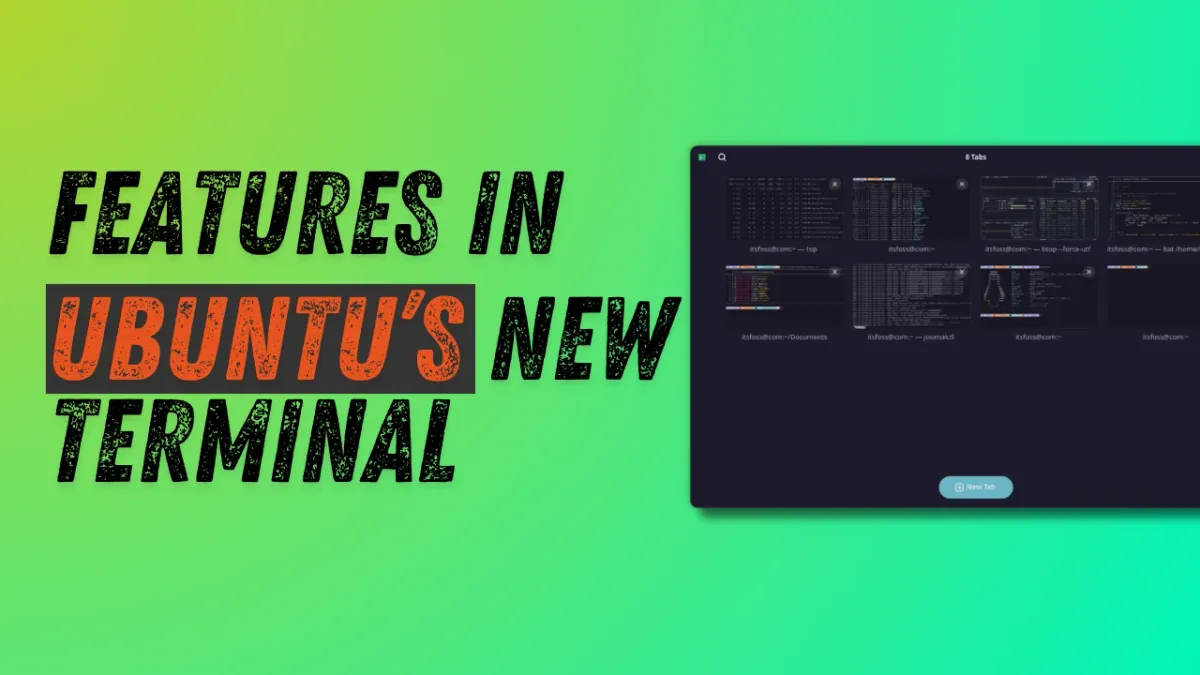
The first thing you’ll notice when launching Ptyxis is its unique approach to tabs. Instead of a traditional tab bar, Ptyxis offers a visual tab selector that feels remarkably similar to the GNOME Activities overview. When you have multiple sessions open, simply click the Show open tabs button (located in the top‑right corner of the title bar) to reveal an interface where each tab appears with its title and a small preview window.
This design instantly tells you what’s running without needing to switch back and forth. You can also drag and drop tabs within the overview to reorganize them, pin important tabs so they always stay at the top, or assign custom names for quick identification.
Renaming and Searching Tabs
Right‑click any tab in the overview and choose Set title to either prepend a custom label to the default process name or create a completely original title. Once your tabs are named, the search button in the top‑left of the title bar lets you instantly locate the session you need—a lifesaver when managing a dozen active terminals.
This tab management system transforms the way you handle multiple sessions, turning a cluttered workspace into an organized, searchable environment.
Rich Color Scheme Customization
Preset Palettes with Live Previews
Ptyxis comes with a wide variety of preset color schemes that can be accessed through the preferences window. Open the three‑dot menu in the top‑right corner, choose Preferences, then navigate to the Appearance tab. Click Show all palettes to browse the full collection. Each scheme is displayed with a neat preview, and selecting one applies it immediately—no restart required.
Why This Matters
For developers and sysadmins who spend hours in the terminal, having a comfortable and identifiable color palette can reduce eye strain and improve readability. Whether you prefer the classic solarized tones, a dark mode with high contrast, or something entirely custom, Ptyxis gives you the flexibility to choose. The instant preview feature allows you to experiment until you find the perfect match for your workflow.
Why Ptyxis Is Gaining Traction
Beyond these two features, Ptyxis stands out for its deep integration with container technologies. It was built from the ground up to support tools like Podman, Distrobox, and Toolbox, making it a natural choice for developers who rely on isolated environments. The consistent GTK4/libadwaita design also ensures that Ptyxis looks and feels like a native part of the GNOME desktop, rather than a third‑party add‑on.
With its inclusion as the default terminal in Fedora and upcoming Ubuntu releases, Ptyxis is quickly becoming the go‑to terminal for millions of Linux users. The combination of an intuitive tab overview, flexible color schemes, and container‑first design makes it a tool worth exploring—whether you’re a seasoned developer or just starting your Linux journey.